Save some time! Use Report Groups to run a bunch of Management Reporter reports at the same time
No need to run them one by one. Streamline your workflow. Use the Report Groups functionality in MR 2012. [It’s in the older version of MR too, but in a different place. In case anyone is still running that. Hopefully not.] Anyway, here’s the skinny on how to run multiples.
Create a new Report Group
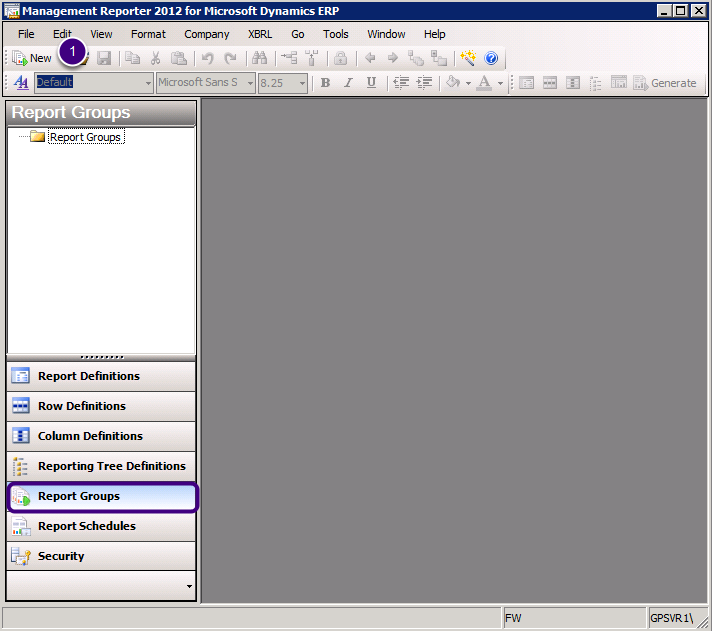
- As with adding new rows, columns and trees, click Report Group, then click New
Add Reports to the Group
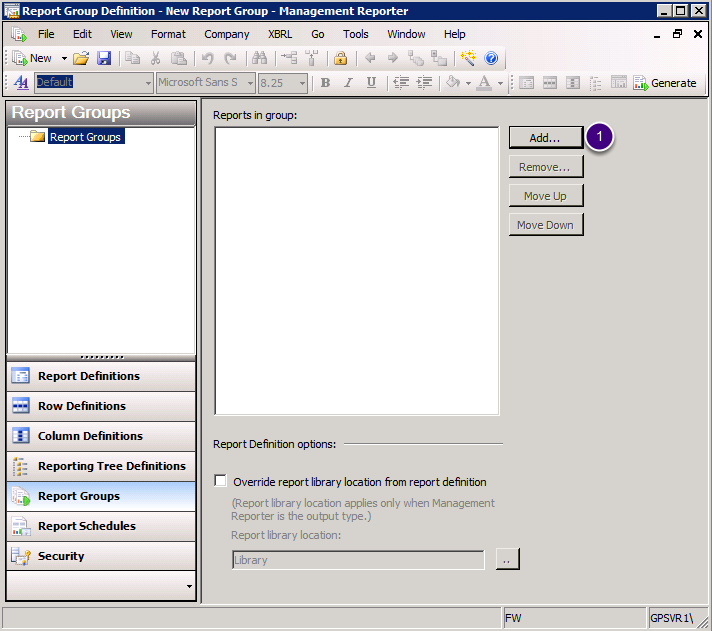
- Click Add to bring up a list of reports. You can then use standard Windows functionality like the Shift or Control keys to select multiple reports to add to the list at once.
Arrange and Save
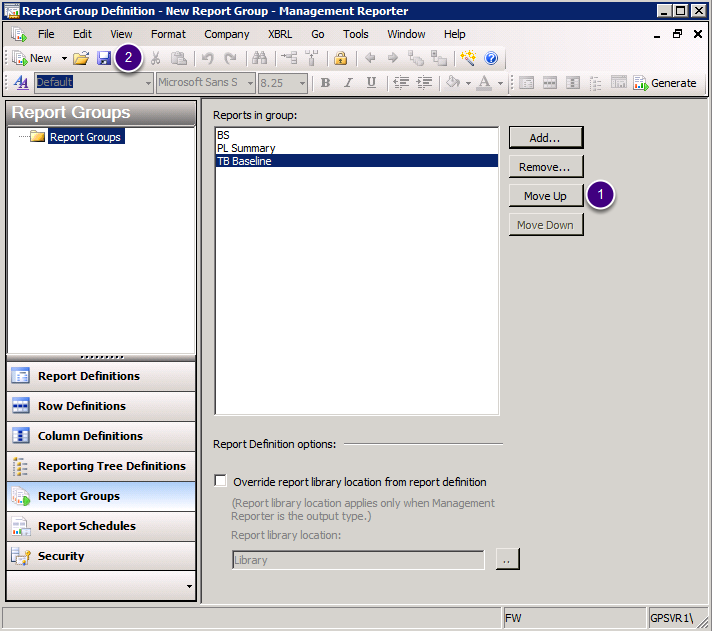
- Once all reports are in, use Move Up and Move Down buttons to arrange order (if one report is dependent on another.)
- Save
Save the Report Group, then Generate
Here I’ll name it Month End. Then I’ll generate.
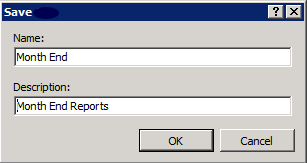
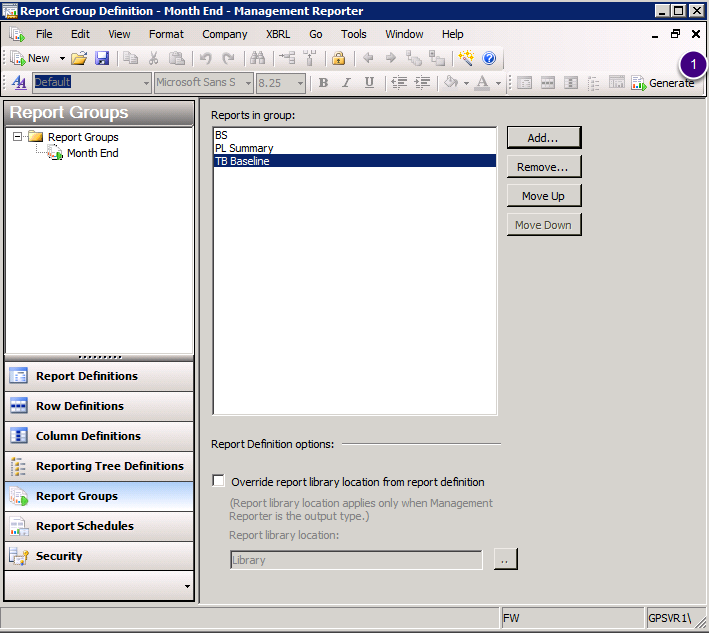
- Generate the Report Group
Override closeup
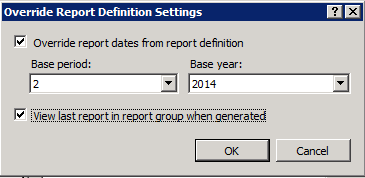
When you Generate, you get this popup. This allows you to make sure all your reports generate for the same period.
Aside to FRx users—you couldn’t do this in FRx! You couldn’t override the report date to make sure you run all reports for the same period without using an extra cost module.
The bottom checkbox ensures that the last report to generate pops up in the Viewer when it is finished.
Seeing the reports in the Report Library
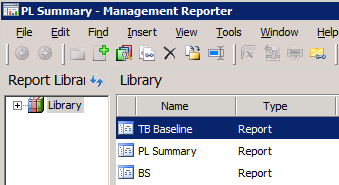
You can see your reports you just generated in the Report Library. Since the Viewer opens on the last report, I switch to the Report Library, sort by date, and there are the latest reports at the top. (If you’re running Rollup 5, you’ll see this open in the Web Viewer instead.)
Seeing the reports in the Designer
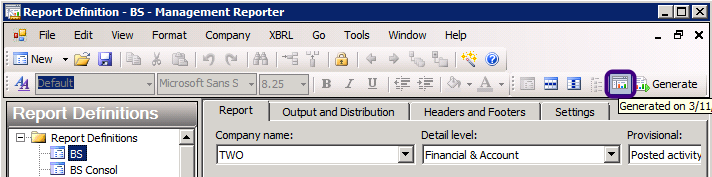
LOVE this. Back in the designer, I use the Generated shortcut icon to pull up a refreshed report.
One more thing—in the report definition, you’ll need to monkey with Settings>Reporting unit selection for the reports with trees. If you Include all units, the report will run for every reporting unit in the tree without popping up the dialog box asking you to mark which units you want to run. This automates the report so it can run unattended.
So give that a whirl. Generate your Report Group and head out to lunch. Or golf. Me, I’m headed to Austin’s renowned Barton Springs to cool off on a blazingly hot day!

Cheers! Enjoy! Jan
I adapted this post from one of the 20 tips in my training manual Creating Reports in Management Reporter II—Step by Step Instructions on 12 More Reports.
PS. The latest release of MR just came out. It’s called CU6. It gives the ability to generate a single report link for a report group, then open all reports from a single page in the web viewer. Meaning you can print all.
The day after I published this, CU6 came out and made lots of changes to report groups. Heads up!
Jan,
We recently migrated from FRx to Mgmt. Reporter. One add on feature we relied on heavily in FRx was the Report Manager application that allowed you generate multiple reports
at once and include other documents such as: .docx, .xlsx, .pptx…etc. It would bundle all these reports and create a nice book. As I see it Management Reporter has no interest in adding this functionality which makes this product less than productive for us and is actually a step back from FRx. My question is there a product similar to FRX Report Manager that you know of
that we could use with Mgmt. Reporter?
Hi Kevin…there’s not a product per se, but you can use some of the built in features to partially mimic this functionality. [If you’re on RU5 or later, you might want to make your system default to the Report Viewer and not the Web Viewer using Tools > Options.] First, set up a new Folder in the Report Library. Second, set up a report group to run all reports at once. Third, in the report group, override the report library location that’s found in the report definition, and send the reports to the new folder. Last but not least, over in the Report Library, highlight the new folder, then use Insert > External File to pick your Word, Excel and Powerpoint files as needed. So this bundles everything together. Printing is another story, though.
There is an option in the latest code, CU6, to create a single report link for multiple reports, and this would allow you to print all reports but wouldn’t include the external files.
Another option may be to use SharePoint. You could probably invent a way to do this over there. (If you do, please post here!) Good luck…Jan
Hi Jan,
Is there any way to have formatting from reports carryover into the web viewer? We understand the web viewer is the only way to view report groups in management reporter. We are attempting to convert the reports to an xps format and then print. However, the formatting does not carry through when this occurs for ALL the reports in our report package.
Hi Mike…you can try the report viewer. It’s less buggy than the web viewer, IMHO. I’ve set my internal installation of MR to use the Report Viewer by default. Take a look under Tools > Options and check the box for ‘Use Management Reporter Report Viewer as default viewer’. The web viewer became the default viewer earlier this year. Hope this works out for you. Cheers…Jan PS. Another workaround may be to export to excel, fix the formatting (even if it does come through), and create a pdf.
Jan and Kevin,
Did you get a chance to build a SharePoint solution to Kevin’s issue or did you come up with a clean solution. We have the same situation where we need clean way to collect several financial statements at once along with an excel file then send the results to one pdf and email to someone.
thx,
Doug
I for one haven’t monkeyed with SharePoint. Anyone else?
Hi Jan,
Thanks for all the excellent infomation on your website. I did the above to create a report group but when I generate it only gives me the last report on the list in the webviewer. I see your PS above says I can get all the reports in one link with CU6, how do I do that? According to “About Management Reporter” in help, I’m running MR 2012 version 2.1.1037.15. How do I know it’s CU6?
Hi Hasan…thanks for the thanks! 2.1.1037.15 is RU5 with hotfix. Starting at RU6, the rollup number will show up as the third digit. RU6 is 2.1.6041.36 for instance. HTH…Jan
We use FRx tree row link heavily to have summary and sub reports. The Summary report will have row that link some figure from sub report, such as various departmental PNL (each are of different format). When report is generated, we can have the summary report, and of course, each and individual sub-reports.
Is this functionality also available in MR?
Hi HFLO…nope. There’s no row linking in MR. The web viewer (now the default viewer) has a feature that allows you to toggle back and forth between summary and detail versions of the same report, so if you construct the report with that in mind, it’s useful. But there’s NO cherrypicking numbers from individual reports. Good luck…Jan
Hi,
how sad MR is replacing FRx yet is missing FRx strong and (to me) ‘must have’ feature ):
The MR summary view feature is far from that…
sad ):
Hi HFLO…you might check out linking to another MR report. It probably won’t do what you’re needing it to do, pull from multiple pages, and there are a couple of gotchas lurking, but it’s good to know it exists for more streamlined reports. Jan
Jan,
On CU9, the reports run in whatever order they want to run, and do not respect the order in the report group. So if you have reports that are dependant on other running first, you may need to setup two report groups and run the primary report group first. I wish the queue would respect the group order.
Thanks for the heads up Mark!
Jan,
Our company has a report group that we need to print to the printer. It is around 400 reports in the report group, but there does not seem to be a functionality to print these reports. Is there a workaround for this? We have opened them in the web viewer and tried to export them to excel and XPS, but the formatting in XPS is screwed up and Excel doesn’t work with that many reports.
Hi Sarah…yikes that sounds awful on more than one level. Agree re XPS. And if you have drilldown turned ON (detail level = Financial & Account), then you’d probably get waaayyy too many pages since the account detail would be included. You might try downloading to the Report Viewer. At least in there, when you export to excel or xps or printer (yes there’s a print option), there’s a dialog box that lets you control how much detail goes. You can also set the Report Viewer as default in Tools > Options. I like it better than the web viewer, and so does everyone I know, but there’ll be no new development on it. So watch out for bugs. Good luck…hope this works for you. Jan
Sarah,
I have a little experience with this, as we ran into a similar issue when we needed to group and print different reports. We were not working with that many reports, so the conversion to excel method does work when we need to print report groupings on occasion. Id be happy to share more details, though it might not be helpful with the number of reports you are working with.
Thanks,
Mike
Hey Mike…that’d be great, please share here if possible. But if worse comes to worse, I can put you in touch with Sarah if you both give permission. Thanks for the offer. Jan
Hi Mike, Thanks for all the great info. I have a customer that just moved to and Azure hosted environment and upgraded to MR CU12. Now, the Group Reports, when they are run, always defaults to the Web Viewer. The user has the option check to default to user MR Report Viewer to as the default. This works correctly on all the individual reports, but the Group Report always opens in Web Viewer. Any ideas on how to correct this?
Thanks
I’m having the same problem that Malissa described. The reports in Group Report always open in Web viewer. Has anyone else had this problem? Have you a way to get the reports to open in Report Viewer.
Thanks
Hi Jay…I haven’t tested this, so this is just a guess: the Report Viewer won’t get any more development, and the Web Viewer is what is getting what little attention microsoft is throwing at M-R [sorry for snark]. So my guess is that this won’t ever work in Report Viewer. That said, you can still open the Report Viewer, go to the library, sort by date generated, and see the individual reports in the group land at the top. Anyone else with experience with this, please chime in! Cheers…Jan
Is there a way a group of reports can be generated into one single file with multiple pages and when exported to excel it would be separated into individual tabs for each report? Thanks.
Hi Mary Anne…I seriously doubt it but I’m traveling and can’t test this. That’d be a nice to have feature. Has anyone else had any luck with this? Cheers…Jan
Hey Jan,
I am on version 2.12.13001.13 of MR. I been having an issue trying to do generate a report group directly into report view instead of launching it to web viewer. I know i saw a couple of comments on it earlier in the thread but wasn’t sure of the final answer. Do you know if this is not available to do and will only launch in web viewer or am i missing something?
Hi Sal…there are lots of requests for this. Full disclosure: I’m not up for testing this on the latest version. That said, my take is that you can sort of bandaid it this way: set MR to default to the report viewer using Tools>Options, run your group, open the Report Viewer, go to the library, sort by date generated, and see the individual reports in the group land at the top. Hope this helps, and if anyone else has any better ideas, please chime in.