Pulling data from Excel into FRx
RevPAR (revenue per available room), Occupancy Rates, Census, Revenue per Employee, RPU (revenue per user), Utilization, Realization Rate, Per Client Profitability…these are just a few of the many performance metrics that can be measured using FRx. Every industry has its own measures of performance, and all are handled using FRx calculations.
The calculations depend on whether the statistical data lives in the GL or in Excel. For the purposes of this explanation, we’ll assume it is maintained in Excel. (For what it’s worth, I much prefer to see it in the GL, but that’s another story.)
So here’s how to pull that statistic in from Excel. There are two different ways to use Excel with FRx, and we’ll focus on the one that’s most commonly used with a single statistic, the Combined Method.
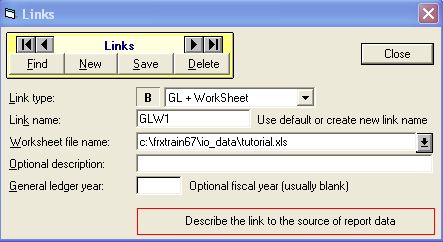
In the row for the catalog (report) that you want to link to Excel, doubleclick the column heading for column H, Link to General Ledger. The Links dialog box opens. Change the Link Type to GL + WorkSheet, and add the excel file name as shown:
Back in the row, the syntax used is this:
@WKS(C=A3, E=A17, G=A3, I=A17, K=A3, M=A17)/CPO
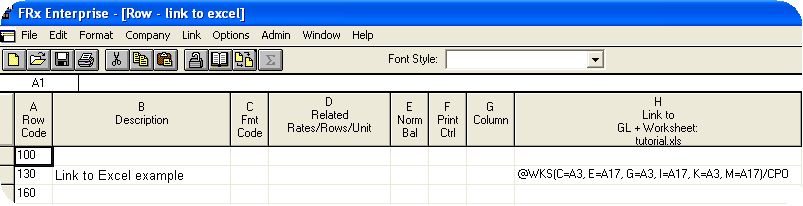
where C, E, G, I, K and M are the FRx column layout headings, and A3 and A17 are the Excel cell references.
The /CPO will make FRx pull the correct data for whatever period is being run, so you can use one Excel file with January through December in columns B through M, and FRx will count the number of periods over from column A (in this example) and pull the correct month’s data.
When the link is working correctly, you can continue in the row with a CAL format code to divide the statistic into revenue or gross margin or whatever needs to be used for your calculation. Might need to set the format as well, and it will look something like this if it’s a percentage:
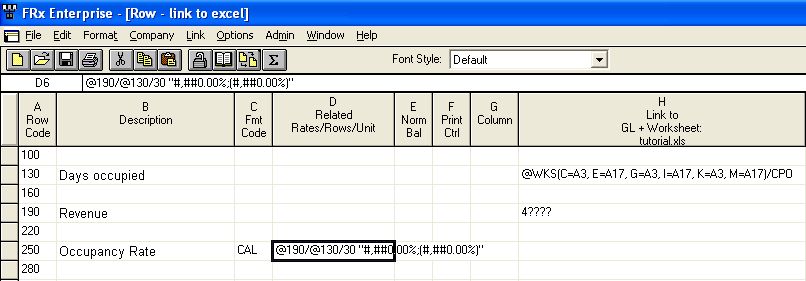
Depending on the report design, you may need to set the calculation priority in the catalog, Report Options tab, Advanced tab, to Calculate Columns First.
Note that you can also link to multiple worksheets in a workbook, but the technique is different. You use the Separate Method, but I’ll save that for another day!
woooow!!!!!!
I am very interest in this process, you can explain a little more
whats happens whit the columm layout?
thanks for you answer
Can you tell me how you would do this if your information was stored in GL instead of Excel?
Much easier then, Aimee. You just use the account number and possibly a row modifier depending on which ledger stores the stat.
Can you have a statistic ledger in GP? If so, where do you go to set it up?
I only work with FRx, so you should talk to your reseller to find out how to use stats in GP. (Ask about unit codes!)
We have unit accounts set up. I just noticed that in the column format in FRX, you can choose a book code and the example in the manual shows what looks like statistical options. But I don’t know how to get my stuff into a book code. I’ll check with them.
Thanks.
Hi, Saw your comment that you prefer statistical data to live in the gl.
How does that work?
Hi Laura…most mid-market GLs have different ‘books’ or ‘ledgers’ that you can use for non-financial information. They use account numbers just like the GL. Then FRx accesses these books in the ‘Book Code’ field in the column layout (and in the row format with a row modifier). So instead of having to link to Excel to pull in your stats, point to the Book that contains the stats and you enter an account number. In many cases this is much simpler than linking to Excel. Jan
I used FRx between 2005 and 2007, and have not looked at it since then. I need to know if there is a website where I can get a quick refresher and also see the features that have been added since that time.
Thanks,
Beatrice
Hi Beatrice…because FRx is being phased out, there hasn’t been much new development on it, so there won’t be much change. You can always review the blog posts at this site and see if that helps any. I don’t know any other sites that focus only on FRx like I do. If you still want more, I have 2 FRx training manuals for sale, an introduction and an intermediate. They are self-study tutorials designed to give a solid foundation. You might be able to skip straight to the intermediate! Good luck! Jan
PS. Here’s the link to the manuals: https://www.frxbuzz.com/frx-training-manuals/
Does the file path have to be in the IO_data folder?
If the file is in the IO_data folder, then you can normally just put the filename. (I say normally because IO_data is the default folder for input/output in the Company Information screen.) You can put the file elsewhere, but the full path has to be there. Cheers—Jan
Hi Jan
I am pulling info from a worksheet. However, for accounts with credit balance, whenever I set the Normal Balance column to “C” it doesn’t change the sign as with regular GL links. Is this even supported?
Thanks,
Diego
Hi Diego…whatever sign you want to pull into the report…that’s what you should put in the worksheet. Good luck…Jan
Hi, I have one TOT column and wanted to develop the Dynamic Forecast report, however you can not bind the WKS column with total column as the error message coming “a link may not be added to a row when format code is present (in column c)”.
HOw to solve this issue. Can you share your expeirence for this how I can print 9 months actual data and 3 months budgeted data from Excel file.
Hi Akber…You can add the excel link to one of the rows that the TOT row references instead of the TOT row itself. For a forecast like this, though, I like to see budgets loaded in the GL, not in excel. Makes the report design a lot easier. Good luck…Jan
Hi, the instructions you shared here are for rows, I’d like to place it in the columns. Is there any way to do that?
Hi Amal…yes, absolutely! You will need to look up information on linking to excel. I’d suggest trying Help first: search for Linking to External Worksheets for an overview. There are two methods of linking, and you’ll want to use the separate link method. If you can’t get what you need from help or from other sources, I have instructions and detailed examples for how to link to Excel (happens to be on a cash flow) in my online course on Management Reporter (and this will work for FRx as well). But it’s not free. The separate link method is detailed in the lesson on Cash Flow Consolidations. Sorry to link you to my paid source! You may be able to find something more cost effective by searching. There are a few tricks to the separate method but if you follow the recipe you’ll get it. Good luck…Jan