Today’s post is a very quick overview of the setup of FRx’s currency translation module.
This is an extra-cost add-on module used to, uh, translate foreign currencies.
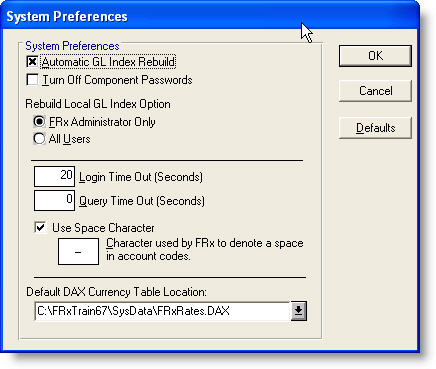
After installation of this module, take a look at Admin>System Preferences. You’ll find the Default DAX Currency Table Location there. (DAX stands for Dynamic Automatic Currency Translation System.)
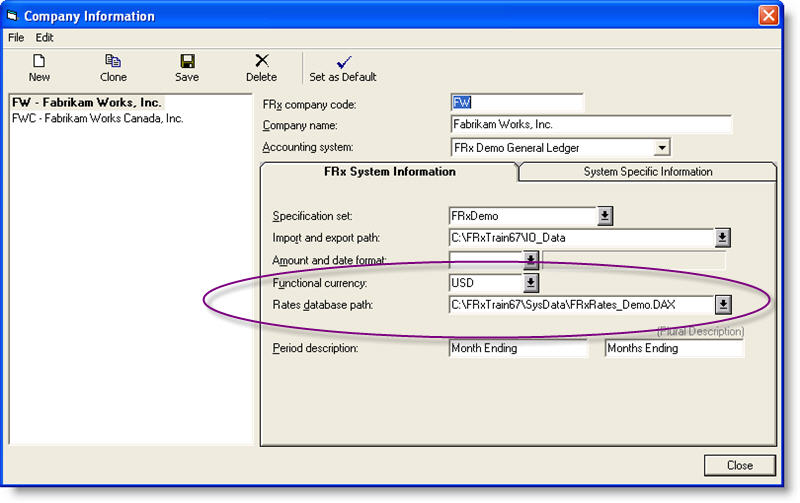
Over in the Company Information screen (Company>Information), you’ll see that a different rates database may be assigned to different companies. This setting overrides the setting in the System Preferences screen. The following shot is of the rates database for the demo company FW:
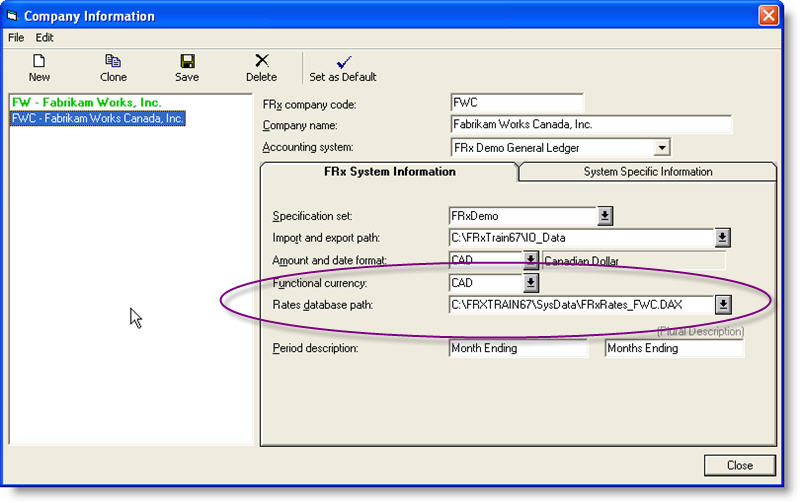
And this is a shot of the rates path and functional currency for the second demo company, FW Canada. Note that the rates databases are different (FRxRates_Demo.DAX above and FRxRates_FWC.DAX below):
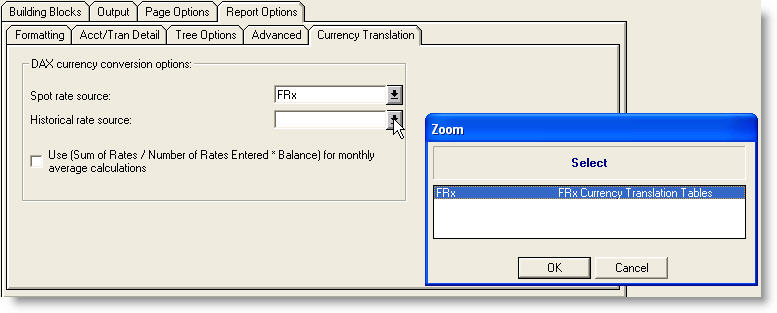
The currency translation module can pull rates from your GL or from tables that you maintain from within FRx. This is a shot of the Currency Translation tab in the catalog, with the option to select different Spot rates sources and Historical rate sources. There’s only one selection here because I’m in FRx’s demo database:
This next section is an overview on maintaining tables. Choose Admin>Open FRx Rate Maintenance and choose the demo dax file:
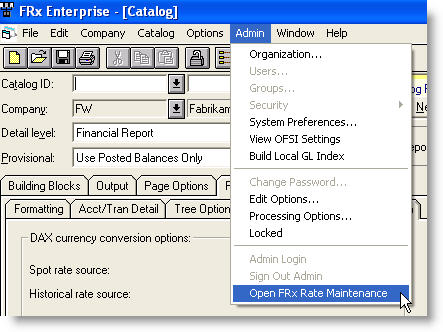
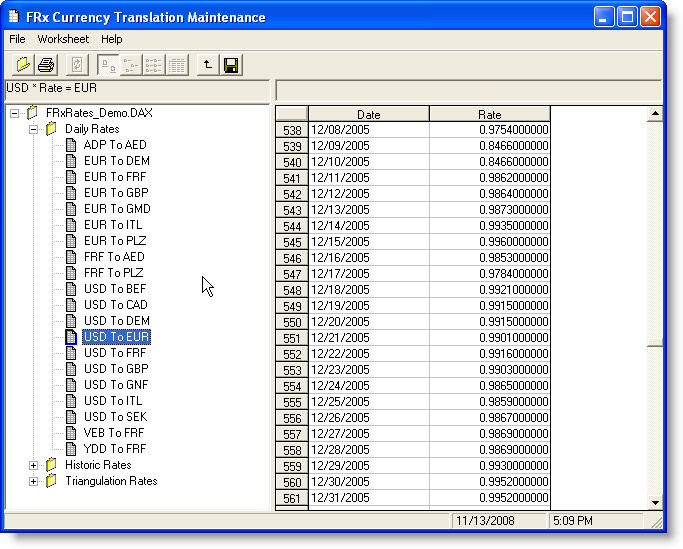
This is a shot of the Daily Rates for US Dollar to Euro translation in the FRxRates_Demo.DAX database:
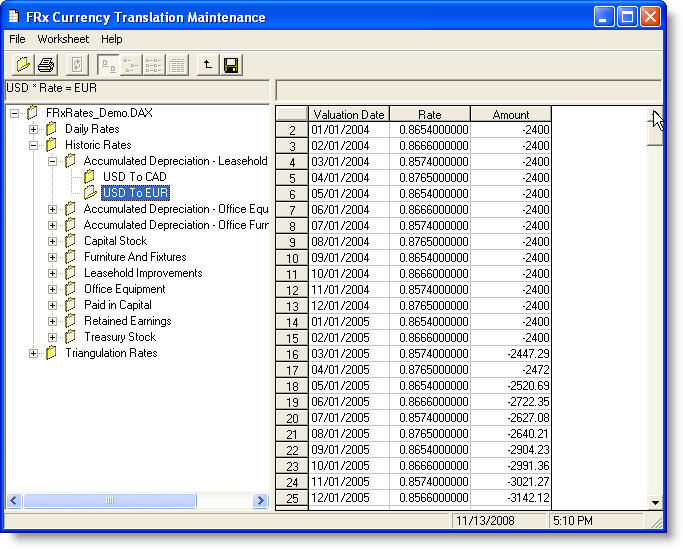
And this is a shot of the Historic Rates in the same database:
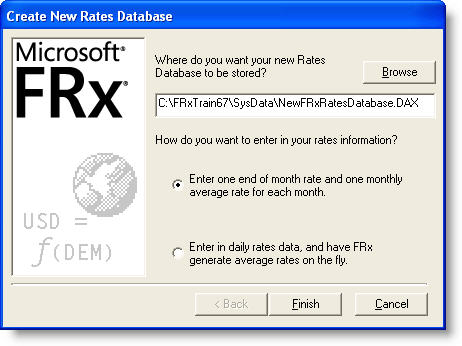
To create a brand new rates database, choose File>New, and the following screen is displayed:
That’s it for now!
This is great information. I just checked our system and I didn’t even know we had this installed. I can now set it up. How wonderful. I really love these letters with all this information. Thanks Jan.
John
I got a kick out of that one John! Thanks for posting. Jan
Is it possible to give access for a user that is not in the Administrator group to open and modify the FRx Rate Maintenance. Thanks and regards. Fahad
Hi Fahad…with security enabled, all commands on the Admin menu are unavailable to users who are not Administrator or part of the Administrators group. Rate Maintenance is on that Admin menu, so I think you’re toast. Sorry…Jan